






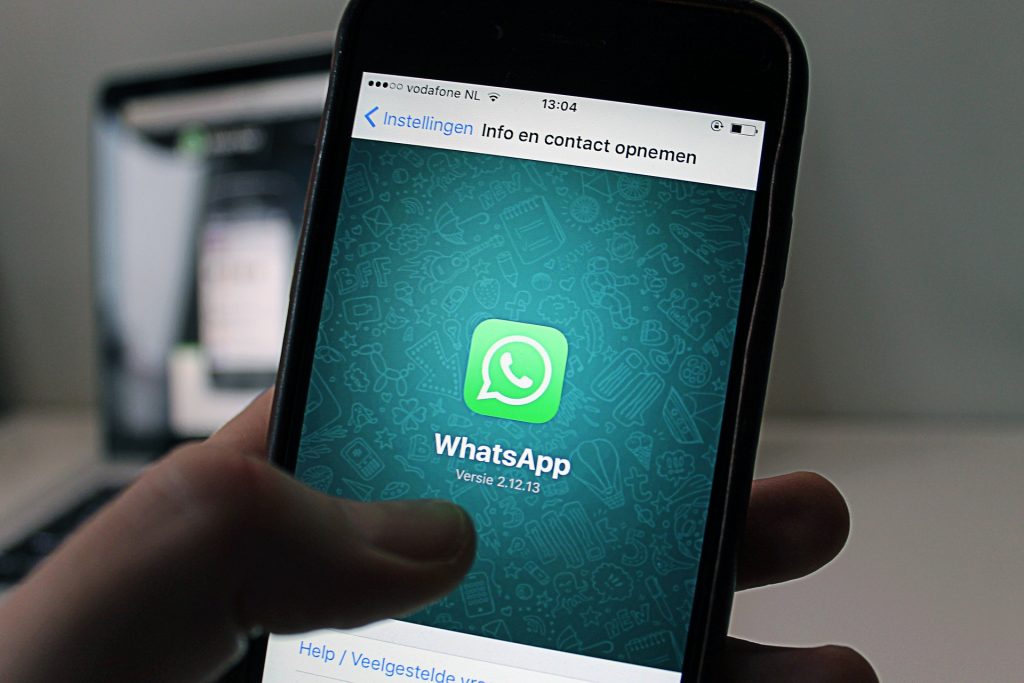
WhatsApp requires some care for a problem-free experience. The Android and iPhone (iOS) messaging application offers important security features that can be activated by users.
Such as the verification of two steps and backup message. Good practices during use, such as being attentive to suspicious links and avoiding the sending of sensitive data, can mean the difference in the security aspect in the day-to-day.
1. Open and share suspicious links
Open any link received by WhatsApp, without any evaluation, can become a whole headache. If the shipment was made by a stranger or someone you have little contact with, distrust. But even when the message comes from a reliable relative or friend, you have to be careful, as the link can be malicious without the knowledge of the user.

When you find a link in the application, look well at its composition and ask: is it a known site? Is there anything strange about the characters? In the context of the conversation, does the sending of the link make sense? These can be indicators of spam, viruses and other undesirable things. In doubt, it is also worth asking who sent the link to. To avoid this type of situation, WhatsApp is testing a resource to help in this analysis.
2. Do not activate the verification in two steps
An important mechanism to increase your security in WhatsApp is the verification of two steps. With it, any attempt to verify the phone number in the application should be accompanied by a six-digit password chosen by the user himself. The function is available for Android and iPhone (iOS) smartphones. To activate it, open WhatsApp, go to “Settings” → “Account” → “Two-step verification” → “Activate.” It is also possible to register an e-mail to disable the function if you forget the password.
3. Use WhatsApp Web on any PC
The WhatsApp Web, which allows the use of the browser's message application, can be very practical for those who spend a lot of time on the computer. However, some care is necessary to maintain your privacy and security.

Avoid using service on other people's machines or for collective use. If you really need, in the end, make sure you got out of your account. Otherwise, other users can see their messages. In addition, on the computer, the user may be exposed to malicious software and fake sites that pass through the messenger.
4. Activate automatic media download
In case you don't have a plan with a lot of data or enough space on your phone, disable automatic media download via the 3G / 4G or Wi-Fi network. The videos, photos and audios received by WhatsApp can consume a lot of data and storage. Set the application to have you choose to download each media when you receive the messages. This way, save your smartphone memory and guarantee more Internet during the month.
To make these settings, go to “Settings” → “Data and storage” → “Automatic download.” The road is for Android and iPhone phones. There are several options to meet the needs of users, who can choose, item by element, whether or not the application should download photos, audio, videos and documents, on the data network and via Wi-Fi.
5. Disable automatic backup
With the backup of WhatsApp conversations, users are not at risk of losing their messages and files from the phone if they have a problem or are stolen, for example. To make these settings, go to “Settings” → “Conversations” → “Backup of conversations” to enable or configure the function. Then all your information will be saved so you need to rescue them again.
6. Share sensitive information by the messenger
WhatsApp automatically protect messages and calls with the end-to-end encryption, so that no one can access them. The application is considered quite safe in this regard, however, some believe that there are vulnerabilities in service. In addition, personal data can be misshared by other users, as there is no control over who can see the transferred content. So, it is better to prevent and avoid the exchange of sensitive information by application, such as personal data, documents, passwords and addresses.